
Scam Awareness
How to Spot a Tech-Support Pop-Up Scam Before You Call or Install Anything
LinkExpln Team · Published November 11, 2026

A full-screen warning that says your phone or computer is infected can feel urgent, especially when it shows a support number, countdown, or repeated alarm. In many cases, that pop-up is not a real system alert at all—it is a scare tactic designed to push you into calling fake support, paying for unnecessary services, or installing remote-access software.
Key takeaway: If a pop-up tells you to call a number, install a “cleanup” tool immediately, or says your device is locked unless you act now, treat it as suspicious. Close the page safely, do not call the number, and verify any warning through your device’s built-in security settings or official support pages.
What is a tech-support pop-up scam?
A tech-support pop-up scam is a fake warning shown in a browser, ad, or malicious webpage that pretends to come from Microsoft, Google, Apple, your antivirus provider, or another trusted brand. Its goal is usually to create panic so you will:
- call a fake helpline or toll-free number
- allow remote access to your device
- install a “cleaner,” “security” app, or browser extension
- pay for fake repair or support services
- share passwords, OTPs, or card details
Authorities regularly warn that legitimate companies do not use threatening browser pop-ups to force immediate action. For example, the U.S. Cybersecurity and Infrastructure Security Agency (CISA) and the U.K. National Cyber Security Centre (NCSC) both advise users to be cautious of alarming pop-ups and fake support requests.
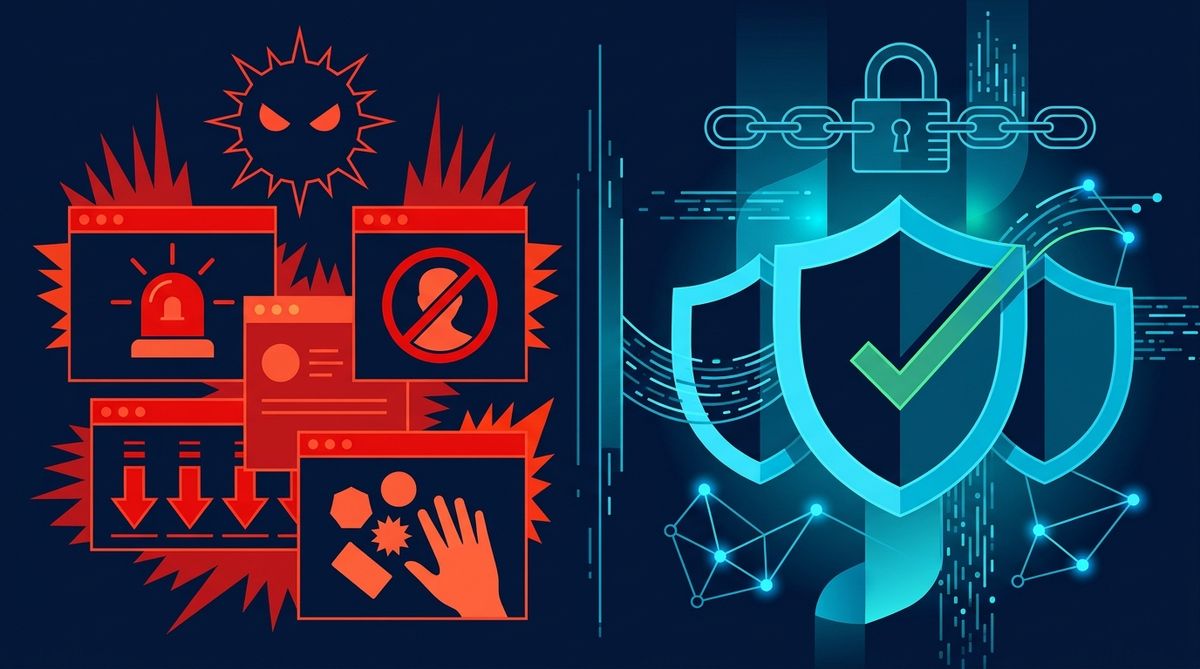 Illustrative image (AI-generated).
The most common warning signs
1. It tells you to call a number right away
This is one of the biggest red flags. Real security alerts usually tell you what the issue is and direct you to official help channels inside your device, browser, or security software—not to a random phone number displayed in a webpage.
Be especially careful if the page says things like:
- “Call support immediately”
- “Do not shut down your device”
- “Your Windows/Android/iPhone is infected”
- “Your account will be disabled in 5 minutes”
2. The page uses fear, noise, or a countdown
Scam pages often rely on panic. They may:
- go full screen
- play sirens or voice messages
- repeat “virus detected” warnings
- show a countdown timer
- claim your files, bank account, or SIM is at risk
That pressure is deliberate. The Federal Trade Commission’s consumer guidance notes that scammers often create urgency to stop people from thinking clearly or verifying independently at consumer.ftc.gov.
3. It looks like a system alert, but it is actually just a webpage
A fake alert may imitate your browser, antivirus, or operating system. But there are clues:
- it appears only inside one browser tab
- the address bar shows an unfamiliar website
- closing the browser makes it disappear
- it contains poor grammar, odd formatting, or generic branding
A genuine operating system warning normally comes from the system itself or your installed security software, not a random site you just opened.
4. It asks you to install remote-access or cleanup software
A scammer may say they need to “inspect” your device and ask you to install remote desktop software or a cleaner app. Once connected, they may pretend to find infections, disable settings, steal files, or demand payment.
If someone reaches you through a pop-up and asks for remote access, stop there.
5. It claims to know your device is infected before any scan
A website cannot perform a deep system antivirus scan just because you opened a page. It may detect limited browser information, but if it instantly claims “387 threats found” without a trusted app scan, that is a strong sign of deception.
What a real security warning usually looks like
Real alerts are usually calmer and more specific. They may:
- come from your built-in security app or browser
- identify the app, file, or website causing concern
- let you review details in settings or security history
- avoid pressure to call a phone number immediately
- point you to official support pages such as Google Help
Browsers and security tools do sometimes block dangerous pages. That is helpful—but even then, you should interact through official menus, not numbers or download prompts shown by a suspicious page.
What to do if you see a fake virus alert
Step 1: Do not call the number or tap the download
Do not engage with the page. Calling confirms you are reachable and may expose you to pressure tactics.
Step 2: Close the tab or app
Try to close the browser tab normally. If the page keeps reopening or appears frozen:
- force-close the browser app on phone
- use Task Manager or Force Quit on computer
- reopen the browser without restoring the suspicious tabs if possible
Step 3: Turn off notifications from the site if needed
Some scam sites abuse browser notifications to keep sending fake virus alerts even after you leave.
Check your browser notification settings and remove unfamiliar sites. Google provides official steps for managing Chrome notifications at support.google.com.
Step 4: Clear browsing data
Clearing recent site data, cookies, and cache can help remove persistent pop-ups and redirects.
Step 5: Run a scan using trusted tools already on your device
Use your device’s built-in protections or your known antivirus app from the official app store or vendor website. Do not rely on the pop-up’s suggested cleaner.
If you want to inspect a suspicious URL first, use the LinkExpln scanner. You can also read how LinkExpln works to understand what link checks can and cannot confirm.
If you already called or installed something
Act quickly, but stay calm.
If you gave remote access
- disconnect the device from the internet
- end the remote session
- uninstall the remote-access tool if you did not intentionally set it up
- run a security scan using trusted software
- change important passwords from a separate, clean device if possible
If you paid or shared banking details
Contact your bank or card issuer immediately using the number on the back of your card or the official bank website. In India, RBI advises customers to use official banking channels and report unauthorised transactions promptly through their bank’s established process at rbi.org.in.
If you are in India and want to report it
You can report cyber fraud through the Government of India’s National Cyber Crime Reporting Portal. If the scam involved a suspicious URL, you can also report a suspicious link.
How to reduce the chances of seeing these scams again
Keep a few basics in place
- update your browser and operating system
- install apps only from official stores or vendor sites
- review browser notification permissions regularly
- use built-in safe browsing features
- be cautious with links in ads, SMS, email, and social posts
Learn the pattern, not just the message
Scam wording changes often. The pattern is more reliable: panic, authority, urgency, a phone number, and a push to install or pay.
Illustrative example:
“Warning! Trojan spyware detected. Do not close this page. Call certified support now at 1800-XXX-XXXX to avoid data loss.”
That kind of message is designed to rush you before you verify anything.
When should you take a warning seriously?
Take it seriously when the alert comes from a trusted source you already use—such as your phone’s security settings, your browser’s built-in warning page, or your installed antivirus—and when you can verify it independently.
For example, if your browser blocks a site for suspected phishing or malware, listen to the warning and avoid proceeding. But still do not call numbers or install tools promoted by the blocked page itself.
For broader good habits, our security practices page covers simple checks that help beyond this specific scam.
FAQ
Can a website really scan my whole device for viruses?
Not in the way many scare pages claim. A website may detect some browser-related signals, but it cannot perform a full trusted antivirus scan of your device just because you visited it.
Are all pop-up security warnings fake?
No. Browsers and security software do show real warnings. The safer approach is to verify where the alert came from and avoid calling phone numbers or installing tools shown by a random webpage.
What if the pop-up uses a real company name like Microsoft or Google?
Brand names are often copied in scams. Do not trust the logo alone. Check whether the alert is coming from an official app, built-in setting, or official support page.
Conclusion
Most tech-support pop-up scams depend on one thing: making you react before you verify. If a warning tells you to call immediately, install a cleaner, or hand over remote access, stop and check it independently first. A good next step is to scan the link, close the page safely, and review your browser notification and download permissions before continuing.
Stay Protected
Not sure about a link you received? Check it with the LinkExpln scanner or learn how LinkExpln works.
More articles