
Scam Awareness
How to tell if a CAPTCHA page is fake before you click ‘Allow’ or paste commands into Windows Run
LinkExpln Team · Published October 27, 2026

Many people land on a page that says “Verify you are human” and assume it is safe. The short answer: a CAPTCHA page is likely fake if it asks you to click “Allow” on a browser popup, copy and paste commands into Windows Run, or do anything unrelated to simply selecting images, ticking a box, or completing a challenge inside the webpage.
Key takeaway: A real CAPTCHA helps a site confirm you are human. A fake CAPTCHA often tries to get notification permission, run malicious commands, or push a download. If the page moves beyond a normal in-page challenge, stop and leave.
Why fake CAPTCHA pages are dangerous
Fake CAPTCHA pages are often used as a delivery step in phishing, scam, and malware campaigns. Instead of verifying you are human, they try to trick you into enabling browser notifications, installing harmful software, or executing commands on your device. Security agencies regularly warn users not to follow suspicious browser prompts, downloads, or command instructions from untrusted sites. For example, Google explains that website notifications require your permission and can be controlled in Chrome settings, while CISA advises users to avoid suspicious links and unexpected prompts that can lead to malware or credential theft (Google Support, CISA).
A CAPTCHA page should never need administrator-like actions from you. If the page’s “verification” process starts affecting your browser, system settings, or Windows tools, that is the warning sign.
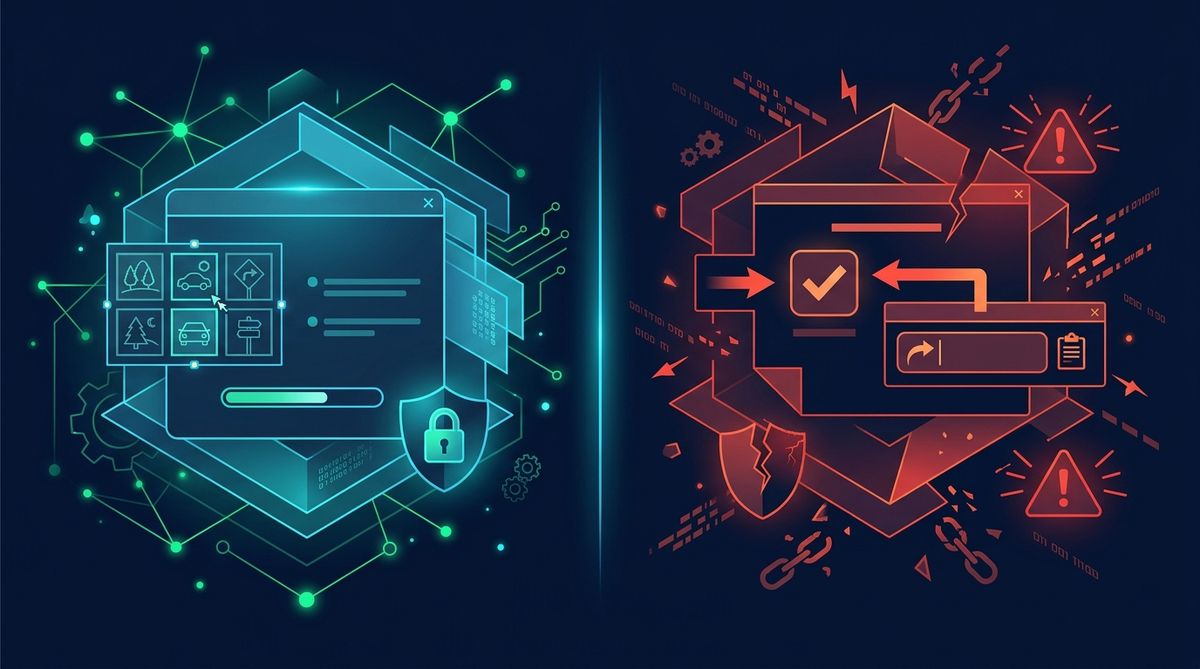 Illustrative image (AI-generated).
What a real CAPTCHA usually looks like
A legitimate CAPTCHA normally stays within the browser tab and asks you to do something simple such as:
- tick an “I’m not a robot” checkbox
- select matching images
- solve a brief visual or audio challenge
- complete a quick in-page security check
It may reload the page or submit a form after completion. But it generally does not ask you to:
- click Allow on a browser notification popup
- copy text to your clipboard
- open Windows Run
- press Windows + R
- paste a PowerShell or command-line instruction
- disable antivirus or browser protections
- download a “verification tool”
If you see any of those, assume the page is unsafe until proven otherwise.
The biggest red flags to spot before you click “Allow”
1. The page says clicking “Allow” proves you are human
This is one of the most common tricks. Browser notification permission has nothing to do with proving you are human. It only allows a site to send notifications to your device. Google’s own documentation shows that notification prompts are a browser permission feature, not a CAPTCHA feature (Google Support).
Common bait phrases include:
- “Click Allow to confirm you are not a robot”
- “Press Allow to continue”
- “Enable notifications to watch/download/access the page”
If you were not expecting notifications from that site, do not allow them.
2. It tells you to press Windows + R or open Command Prompt
A webpage should never require you to open Windows Run, Command Prompt, or PowerShell just to pass a CAPTCHA. This is highly suspicious. Attackers use such instructions to trick people into running commands that can download malware, launch scripts, or connect to malicious servers.
3. It asks you to paste commands copied to your clipboard
Some fake pages silently copy text to your clipboard, then show steps like: “Press Windows + R, paste, and hit Enter to verify.” That is not verification. That is an attempt to make you run something on your own computer.
4. The site looks unrelated to the CAPTCHA request
If you clicked a video, a coupon, a file-sharing link, a “breaking news” post, or a random social media link and suddenly hit a CAPTCHA page with aggressive instructions, be cautious. Scammers often use low-trust landing pages and then insert a fake verification step.
5. The wording feels urgent, broken, or unnatural
Many scam pages use poor grammar, odd spacing, mismatched branding, or pressure tactics such as “Complete this step immediately or lose access.” Legitimate services may be imperfect, but urgency plus unusual technical instructions should make you stop.
What to do if a CAPTCHA page asks you to click Allow
Follow these steps:
Step 1: Do not click Allow
If the browser shows a permission popup and the page claims it is part of verification, close the tab instead.
Step 2: Check the web address carefully
Look for misspellings, strange subdomains, random characters, or a domain that does not match the brand you expected. If you are unsure, scan it with the LinkExpln scanner before interacting further.
Step 3: Leave the page
Close the tab. Do not try to “test” what happens. If a site starts with deception, there is no need to continue.
Step 4: Remove notification permission if you already clicked Allow
If you already allowed notifications, remove that site’s permission in your browser settings. Google provides official steps for managing notification permissions in Chrome (Google Support).
Step 5: Run a security scan if you downloaded or ran anything
If you pasted commands into Run, opened PowerShell, or downloaded a file, disconnect from the internet if practical and run a security scan using your trusted security tools. If this happened on a work device, inform your IT team immediately.
What to do if you already pasted commands into Windows Run
Act quickly, but stay calm.
Step 1: Disconnect the device from the internet
This can help limit further communication with a malicious server.
Step 2: Do not enter passwords or banking details
If malware may be active, avoid logging into email, banking, or work accounts on that device until you have checked it.
Step 3: Run security checks
Use your installed security software and update it first if possible. If your browser starts behaving oddly, review its extensions and notification permissions too.
Step 4: Change important passwords from a different trusted device
If you suspect your system was compromised, change passwords for email, banking, and key accounts from another clean device.
Step 5: Report serious cybercrime if money or account abuse is involved
In India, you can report cybercrime through the official National Cyber Crime Reporting Portal (cybercrime.gov.in). If banking fraud is involved, contact your bank immediately and follow RBI guidance on reporting unauthorised electronic transactions (RBI).
Practical habits that help you avoid fake CAPTCHA traps
Be suspicious of “verification” outside the page
Real CAPTCHA checks happen on the page. The moment you are told to interact with browser permissions or Windows tools, stop.
Avoid links from unknown messages and popups
CISA advises caution with suspicious links and unexpected prompts because they are common routes to phishing and malware (CISA). If a link came from an unknown sender, treat the destination with extra care.
Use a link checker before interacting
If a page feels off, check the URL first with the LinkExpln scanner. You can also review how LinkExpln works to understand what signals are checked.
Keep browser permissions under control
Review which sites can send notifications. Unwanted notification abuse is common because users often click “Allow” without realising what they approved.
Report suspicious links
If you come across a deceptive CAPTCHA page, consider using report a suspicious link so others can be warned.
Illustrative example
Illustrative example:
“Security Check: Click Allow to verify that you are not a robot. Then press Windows + R, paste the copied code, and click OK to continue.”
This is not normal CAPTCHA behaviour. It combines two unrelated and risky actions: notification permission and local command execution.
FAQ
Is every CAPTCHA that appears suddenly a scam?
No. Some legitimate sites use CAPTCHA to reduce abuse. The problem is not the CAPTCHA itself, but what it asks you to do. If it asks for browser permissions, downloads, or Windows commands, that is a major warning sign.
What happens if I click “Allow” on a fake CAPTCHA page?
The site may start sending unwanted notifications, including scam alerts, fake virus warnings, or links to more malicious pages. Remove the permission in your browser settings as soon as possible.
Can a website really make me run commands through Windows Run?
A website cannot safely require that for normal human verification. Attackers rely on social engineering: they persuade you to run the command yourself.
Conclusion
A real CAPTCHA should help a site confirm you are human inside the webpage. If the page tells you to click Allow, paste commands into Windows Run, or install something, assume it is unsafe and back out. Your next step is simple: close the page, check the URL with the LinkExpln scanner, and remove any notification permissions you may have granted.
Stay Protected
Not sure about a link you received? Check it with the LinkExpln scanner or learn how LinkExpln works.
More articles